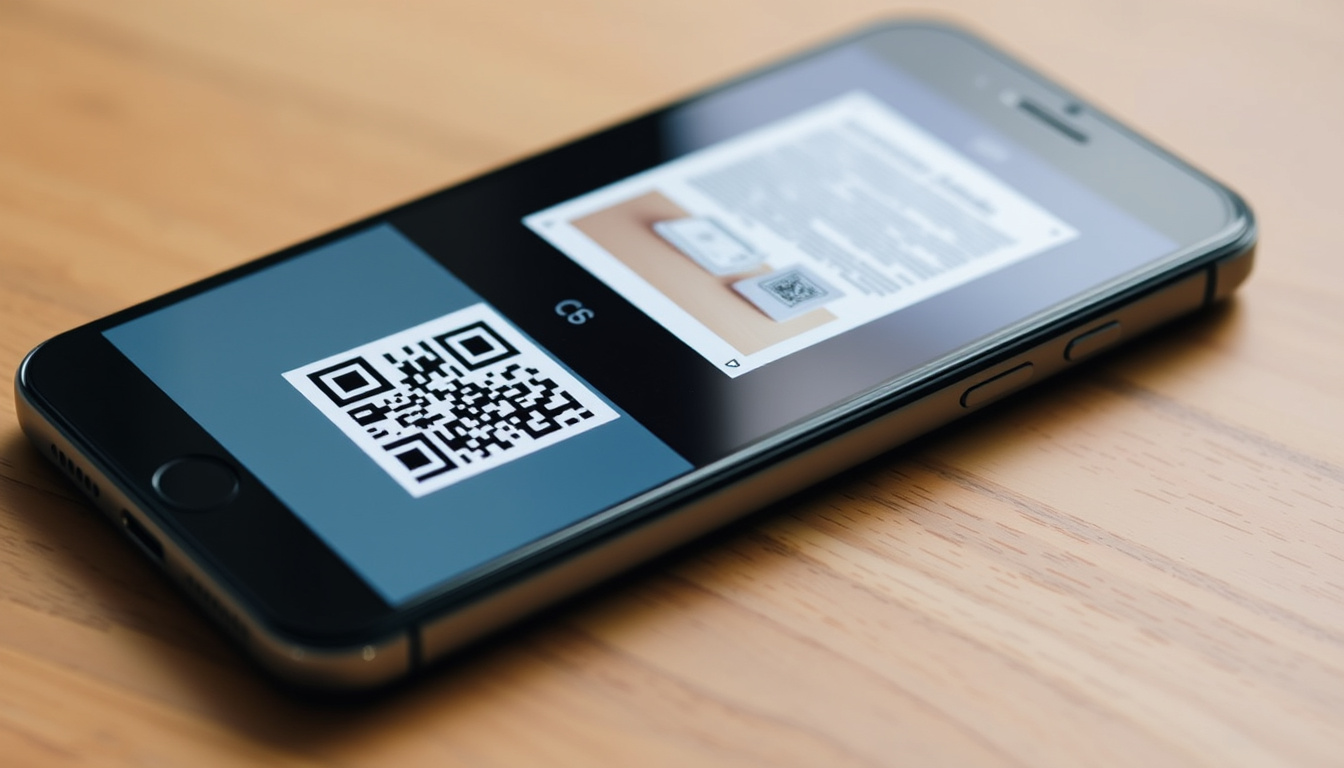
Your iPhone already has two hidden scan buttons for documents and QR codes that require no app downloads. This guide shows exactly where they are and which method works best for your situation.
Native scanning methods on iPhone: 2 (Notes and Files) · QR code scanning support: Built-in via Camera app · iOS version requirement for Files scanning: iOS 13 or later · Maximum pages in a single scan (Notes): Unlimited (up to device storage) · File formats saved: PDF or image (JPEG/PNG)
Quick snapshot
- Notes and Files apps include a document scanner since iOS 13 (Apple Support (official documentation))
- Camera app scans QR codes automatically since iOS 11 (Apple Support Canada (regional support site))
- No physical scan button exists on any iPhone model (Apple Support (official documentation))
- Future iOS versions may introduce new scanning features (not confirmed)
- iOS 13 (2019) brought document scanning to Files app (Apple Support (official documentation))
- iOS 11 (2017) introduced automatic QR code detection in Camera (Apple Support (official documentation))
- iOS 26 (current) adds flash and image filter options for document scanning (Apple Support (official documentation))
- Apple hasn’t announced dedicated scanning improvements beyond current iOS 26 features
For related scanning tools, see our Image to PDF: Free Online Converter – Top Tools Guide
Notes and Files apps include a document scanner since iOS 13. — Apple Support (official documentation)
Auto mode in the Notes app automatically detects document edges and captures scans without manual intervention. — SDM Foundation (nonprofit educational resource)
Where is the scan button on my iPhone?
Is there a physical scan button?
- No iPhone model has ever included a physical button dedicated to scanning (Apple Support official documentation).
- Scanning is entirely a software feature accessed through apps.
The implication: if you’ve been hunting on the side of your phone for a “scan” button, you can stop. The button lives inside specific apps, not on the hardware.
How to access the scan feature in Notes
Open the Notes app, create a new note or open an existing one. Tap the camera icon (looks like a small camera) in the toolbar above the keyboard. From the pop-up, select “Scan Documents” (Apple Support Canada regional support site). The scanner view opens immediately.
How to access the scan feature in Files
Open the Files app and navigate to any folder—for example, “On My iPhone”. Tap the “…” (more) button in the top-right corner. From the menu, choose “Scan Documents” (Apple Support official documentation). That’s it: the same scanner interface appears, but your scans save directly into Files.
How can I use my scan on my iPhone?
How to scan a document using Notes
- Launch the Notes app and create or open a note.
- Tap the camera icon in the toolbar and select “Scan Documents”.
- Position your document on a flat, well-lit surface. The camera will automatically detect edges and highlight them in yellow (SDM Foundation nonprofit educational resource).
- Auto mode captures the scan without you tapping anything. Alternatively, tap the shutter button or press a volume button (Apple Support official documentation).
- After capture, drag the corners to adjust the fit if needed.
- Tap “Keep Scan” when satisfied, then “Save” to add it to your note.
The trade-off: Notes scanning is fast and simple, but your scans live inside a note rather than as standalone files you can find in the file system.
How to scan a document using Files
- Open the Files app and browse to a folder (e.g., “Documents”).
- Tap the “…” button and choose “Scan Documents”.
- The scanner interface is identical to Notes. Position the document and let Auto mode capture it.
- Adjust corners, apply color filters (color, grayscale, black & white) if desired (Vraka CPAs Blog professional accounting resource).
- Tap “Save” — the scan lands directly as a PDF in your chosen folder.
Why this matters: saving directly to Files means you can rename, move, or share scans without first exporting from Notes.
How to save scanned documents
After scanning in Notes, tap the scan thumbnail and choose “Share” to save it to Files, email it, or send via Messages. In Files, the scan is already a PDF where it’s saved. You can also export JPEG or PNG versions (YouTube – Apple Support Channel official how-to video).
The pattern: choose Notes for quick single-page captures; choose Files for organized multi-page documents.
How do I scan directly from my iPhone?
Can I scan without opening an app?
Not directly from the Lock screen or Home screen. The closest you get is the Files app’s “Scan Documents” option, which doesn’t require you to open a note first — just tap Files, navigate to a folder, tap “…” and choose “Scan Documents”. No third-party app needed (Apple Support official documentation).
Does Control Center have a scan shortcut?
No. By default, Control Center does not include a native scan shortcut. You can create a shortcut via the Shortcuts app, but Apple doesn’t provide one out of the box.
How to use the Files app for instant scanning
Place the Files app on your Home screen dock for one-tap access. Once inside, you’re two taps away from scanning: tap a folder, then the “…” button. This is the fastest native method for direct scanning.
If speed is your priority, pin the Files app to your dock. You’ll save two taps compared to Notes, and your scan lands directly in the file system as a PDF.
What this means: the Files app on your dock is the fastest path to a PDF scan.
How do I scan a QR code in my iPhone?
Does the Camera app scan QR codes automatically?
Yes — since iOS 11, the Camera app automatically detects QR codes when they’re in view. Point the camera at any QR code, and a notification banner appears at the top of the screen. Tap that banner to open the link (Apple Support Canada regional support site). No extra app, no button pressing.
How to scan a QR code from the Control Center
Apple doesn’t include a QR code scanner in Control Center. But you can add a “Scan QR Code” shortcut using the Shortcuts app and place it in Control Center manually.
What to do if QR code scan doesn’t work
- Check that “Scan QR Codes” is enabled: go to Settings > Camera and toggle Scan QR Codes on (Apple Support Canada regional support site).
- Ensure you’re running iOS 11 or later.
- Make sure the QR code is well-lit and not damaged or obscured.
The catch: QR scanning works automatically, but if the toggle is off, the camera will ignore every QR code you point at.
What is the easiest way to scan with an iPhone?
Which native method is fastest?
For a single page, Notes is the fastest method because you’re likely already using Notes for quick capture. Open a note, tap the camera icon, scan, save. For batch scanning multiple pages into one PDF, Files is faster because you can scan several pages sequentially and the end result is a single PDF in your chosen folder (YouTube – Apple Support Channel official how-to video).
Are third-party scanning apps recommended?
Not for most users. Adobe Scan (free with premium features), Scanner Pro (paid), and CamScanner (free with ads) offer extra features like optical character recognition and cloud syncing (Vraka CPAs Blog professional accounting resource). But for basic document scanning, the native methods are completely free, require no sign-up, and work offline.
How to scan a single page quickly
- Swipe down from the Home screen to open Spotlight Search.
- Type “Notes” and open the app.
- Tap the camera icon → “Scan Documents” → hold phone over document → tap shutter → “Save”.
That’s four taps total. No app download, no waiting.
For the average iPhone user who scans fewer than five documents a week, the built-in Notes and Files scanners are all you need. Third-party apps add convenience features but won’t make your scans look better or save more time on simple tasks.
The catch: if you need OCR or advanced editing, you’ll have to use a third-party app.
For a detailed walkthrough of the built-in tools, check out this guide on native document scanning on iPhone.
Frequently asked questions
Can I scan multiple pages into one document on iPhone?
Yes. In both Notes and Files, you can scan multiple pages by tapping “Keep Scan” after each page and then tapping “Save” when finished. All pages combine into a single multi-page PDF (YouTube – Apple Support Channel official how-to video).
How do I edit a scanned document after scanning?
Tap the scanned image in Notes or the PDF in Files, then choose “Edit”. You can adjust edges, crop, rotate, and apply color filters (Vraka CPAs Blog professional accounting resource).
Is there a free scanning app for iPhone without ads?
Yes — the built-in Notes and Files apps are completely free, offline, and ad-free (Vraka CPAs Blog professional accounting resource).
Why does my iPhone not scan QR codes?
Go to Settings > Camera and make sure Scan QR Codes is toggled on. Also verify your iPhone is running iOS 11 or later (Apple Support Canada regional support site).
How to share a scanned document from iPhone?
In Notes, tap the scan thumbnail and choose “Share”. In Files, long-press the PDF file and select “Share”. You can send via email, Messages, or AirDrop.
Can I scan a document using iCloud Drive?
Yes — if you save a scan to iCloud Drive via Files, it syncs across all your Apple devices. The scanner is in Files, not iCloud Drive itself. For future device updates, see rumors about iPhone 17 Air.
Does scanning with iPhone use a lot of storage?
Each scanned page is roughly 200-500 KB as a PDF. A 10-page document takes about 2-5 MB — negligible on most iPhones (Vraka CPAs Blog professional accounting resource).
Upsides
- Two built-in methods, both free and offline
- Multi-page PDF support in both apps
- No third-party app needed
- QR code scanning is automatic
Downsides
- No scan shortcut in Control Center
- No OCR (optical character recognition) in native tools
- Scan button is hidden inside app menus
Your iPhone already has everything you need to scan documents and QR codes. No app store visit, no subscription, no learning curve. The hidden scan buttons in Notes and Files are powerful enough for almost any everyday scanning task — from receipts and contracts to business cards and forms. For the occasional scanner, that’s all you’ll ever need.

Ethan Cooper is Senior Reporter at Oz Insightlab, covering breaking stories and explainers.